

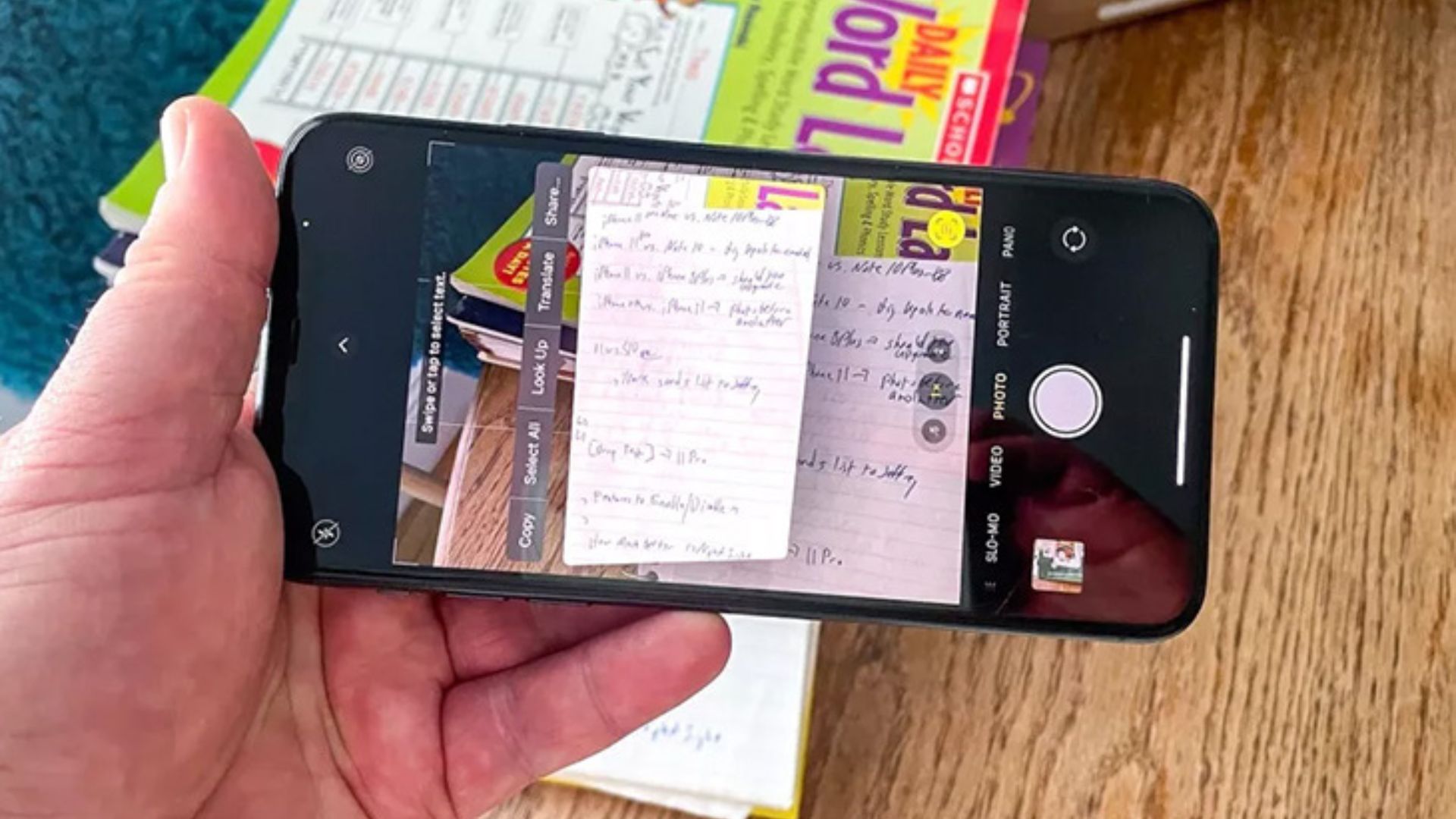
Easy Way to Translate Language from iPhone Camera We are trying to translate the words in any photo into the language we want. Many of us are using Google’s image search or scanner for that.
Those who have Android phones can easily translate the language in the photo using Google Image Search. Likewise, iOS users can also translate from Google Image Search.
But, did you know, that the text in the photo can also be translated from the iOS camera.
If you use a recent iOS device or have used an iPhone that supports iOS 15, then there are hidden features on your device.
One of those special features is the feature that translates the words in the photos or images from the phone’s camera.
If you have been to a new place, where you are not familiar with the language spoken there, this feature may be suitable for you.
Easily translate words from the iPhone’s camera into a language that suits you
- First, go to the iPhone’s camera app.
- Then point the camera at the text on the paper or any other place that contains the word you want to translate.
- After the device recognizes the word, there will be a scanner icon.
- Then tap on the translate option.
- Then there is the default language translation. Go to ‘Change Language’ to choose the language that suits you best.
- Then choose the language that suits you.
- If you need to copy or translate the text of a photo you have already taken, you can do so by going to the Photos app.