

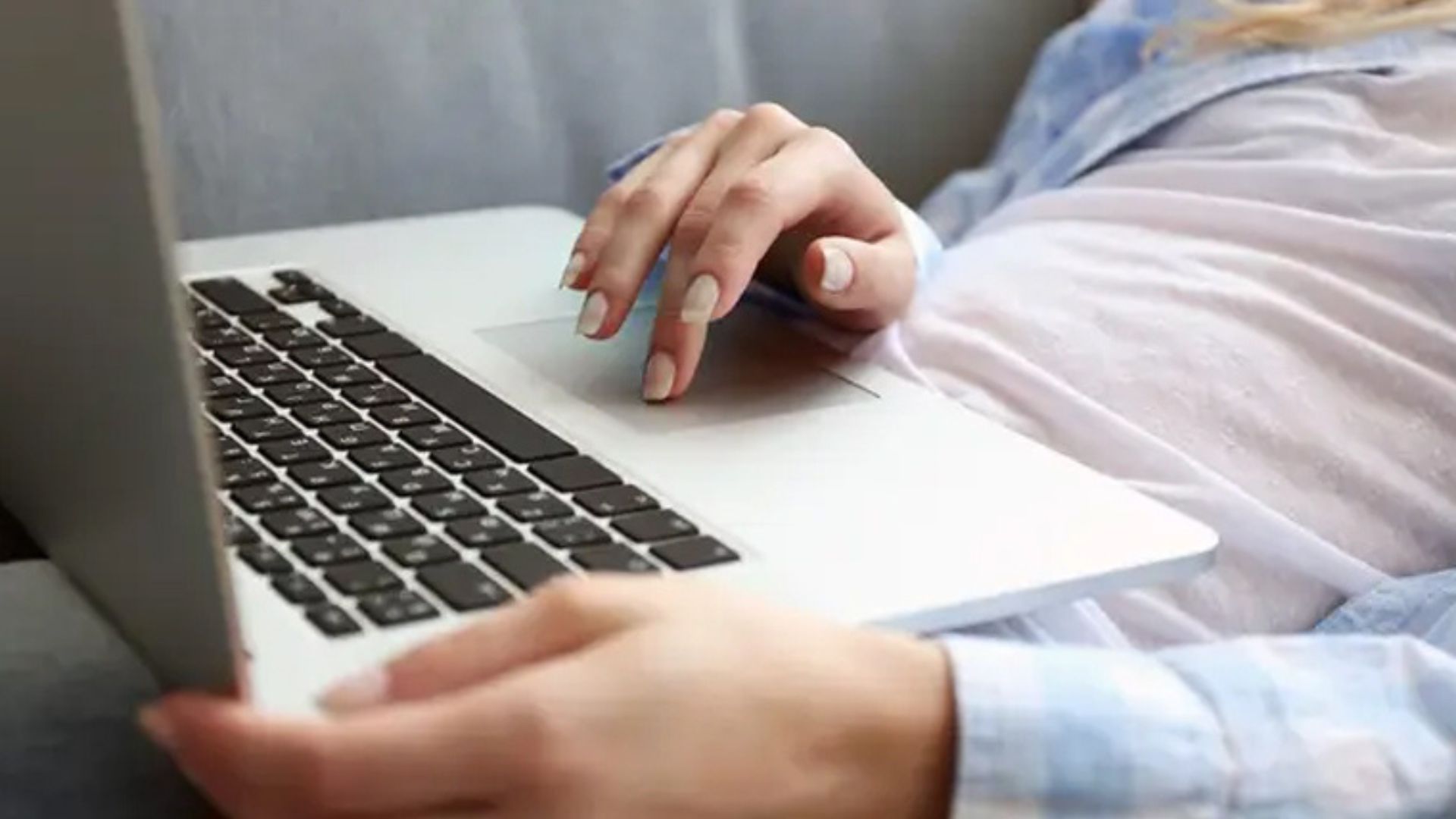
Not Scrolling From The Touchpad Of The Laptop? Here’s How To Solve It ‘Two finger scrolling’ is considered a very useful feature to operate a laptop. The screen can be scrolled with the help of this feature. This feature also increases productivity.
Because it makes it easier to move the slider up or down or right or left with the mouse. But sometimes this feature may not work. Today we are going to tell you how to solve this problem.
View Touch Pad Settings
To see the touch pad setting, first look at the two finger setting. If disabled, this feature will not work. For this, go to Settings, Devices, and Touchpad. In there, turn on the ‘Two Finger Scrolling’ feature if it is off.
Update the touchpad driver
Old and problematic drivers also cause problems with the touch pad. If the scrolling feature is not working then you can also update the driver. For this, visit your laptop brand’s website and update to the latest version.
Restart TopPad
Click the Windows and ‘R’ keys together. And type services.msc. Then search for HID-compliant touch pad in the list that appears. And right click and click restart.
Windows Update
In the new update, the problems in the old ones are solved. For this reason, it is considered necessary to use the latest version of the operating system. If your touchpad is damaged, you can update Windows.
Roll back the driver
To roll back a driver means to restore the previous version of the driver. If you update to a new version of the touchpad driver but it doesn’t work, you can roll back. For this, right click on Device Manager and select Properties. And click on the driver tab. If there is an option for ‘roll back driver’ then you can click on it.
Check the troubleshooting
Go to the settings of the laptop and go to hardware and devices via troubleshooting from system. And follow the procedure there. It identifies the hardware problems and their solutions.
In addition, some third party software on the laptop can also cause problems with the touchpad. Therefore, do not install any software other than essential. Similarly, this feature does not work even when there is physical damage to the laptop. In that case, you can show it to the technician.