
How to work offline with Google Docs, Sheets and Slides One transformation we’ve seen in recent years is the ability to load desktop software into web apps in a browser. Google is at the forefront in this matter, having provided access to Google Docs, Gmail, Google Calendar, Google Photos, etc. from anywhere with a web browser and internet.
The reason why these apps are so popular is obvious: there is nothing to install and nothing to remember. If you move to another computer or have to work together with another person, these features of the web app are much easier than the files or programs on the local hard drive.
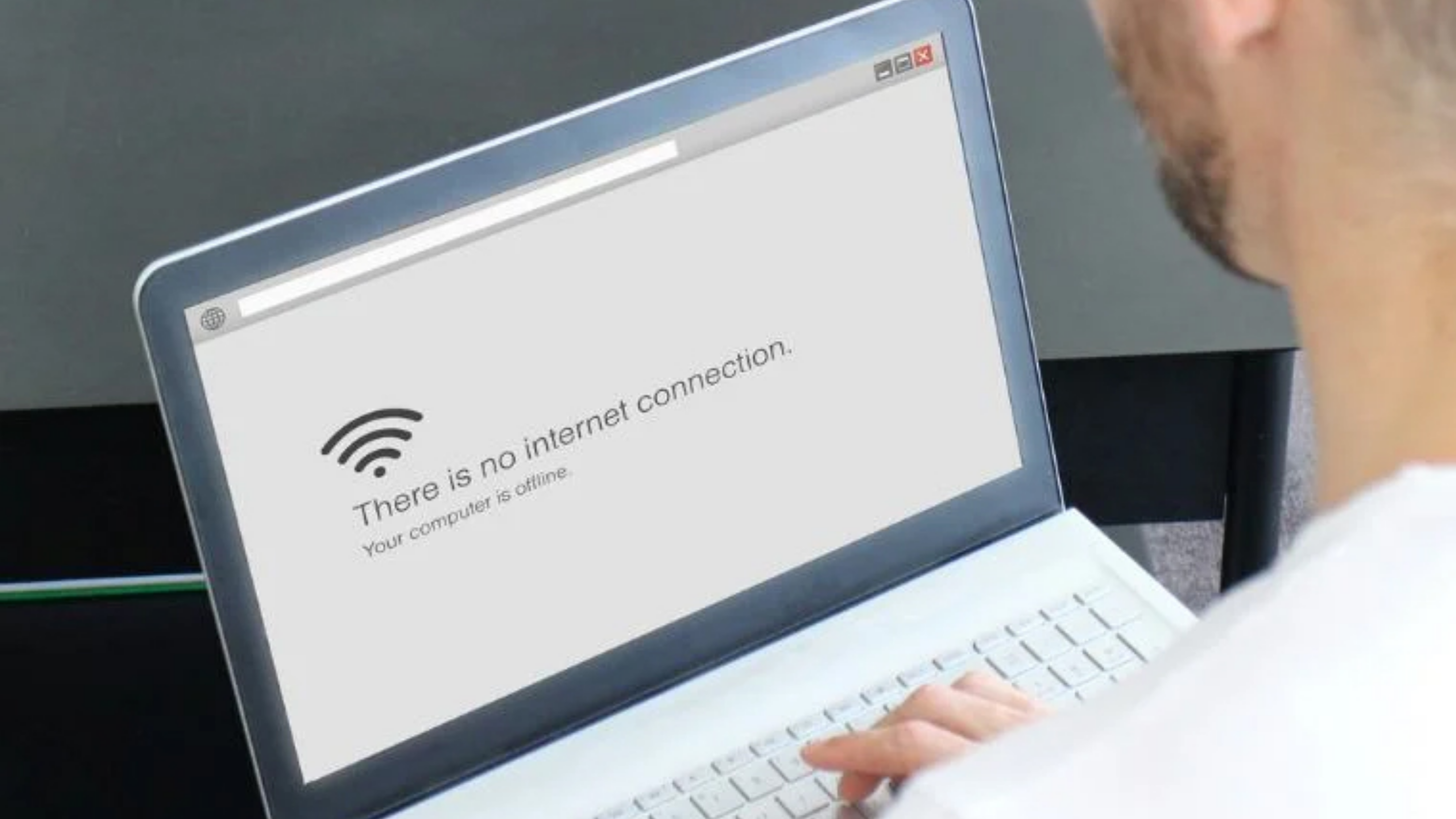
But do you really know that Google Docs, Sheets, and Slides software can be used offline to some extent? Today we are telling you about how to use these apps in airplane mode in remote areas where there is no internet, or, let’s say, when the internet is down.
Settings for offline access
For offline access to Docs, Sheets, and Slides, you need to do some prep work. So that even if there is no internet, you can use these tools normally in the browser. For this, you need to use Google Chrome or Microsoft Edge as your browser, both of which are based on the same Chromium code.
In addition, your laptop or desktop computer should have enough space to store the necessary files.
Choose the option written under ‘Create, open, and edit your recent Google Docs, Sheets, and Slides on this device while offline’ under Offline. This setting applies to all three web apps, but settings made on one device do not apply to other devices. So you have to enable it on every computer that you use personally.
After you right-click on the file in Google Drive and select ‘Make available offline’, the file is ready for offline use.
When you open a drive or a specific Docs, Sheets, or Slides page, files that are available offline can be seen with a gray icon next to their name.
File work offline
When using Google Docs, Sheets, and Slides offline, you won’t find much difference compared to online. However, if you don’t have internet access, you won’t be able to load pictures from the web. Some processes are slightly different when offline.
For example, if you create a new file, you need to name it immediately. That is, such a file may not appear immediately as an untitled document, spreadsheet, or presentation.
Here, you will see a computer icon instead of a cloud icon while offline.
All the changes you make while offline are saved in Google Docs, Sheets, and Slides and are automatically synced to the live version as soon as internet access is established. Working in this way can become a bit more complicated in terms of shared files.
Offline access on mobile
Most of the work you do in Google Docs, Sheets, and Slides is done through a regular desktop web browser. However, you can get this type of offline access on mobile apps as well. From where you can edit files, like on a desktop, even when your phone or tablet is offline,.
For this, go to the Google Drive app on Android or iOS, tap on the three dots next to the file, and go to ‘Make available offline‘. If you’re using a separate app for Docs, Sheets, or Slides instead of the main Google Drive, you can tap the three dots next to
file for the offline option.
 How to work offline with Google Docs, Sheets and Slides