

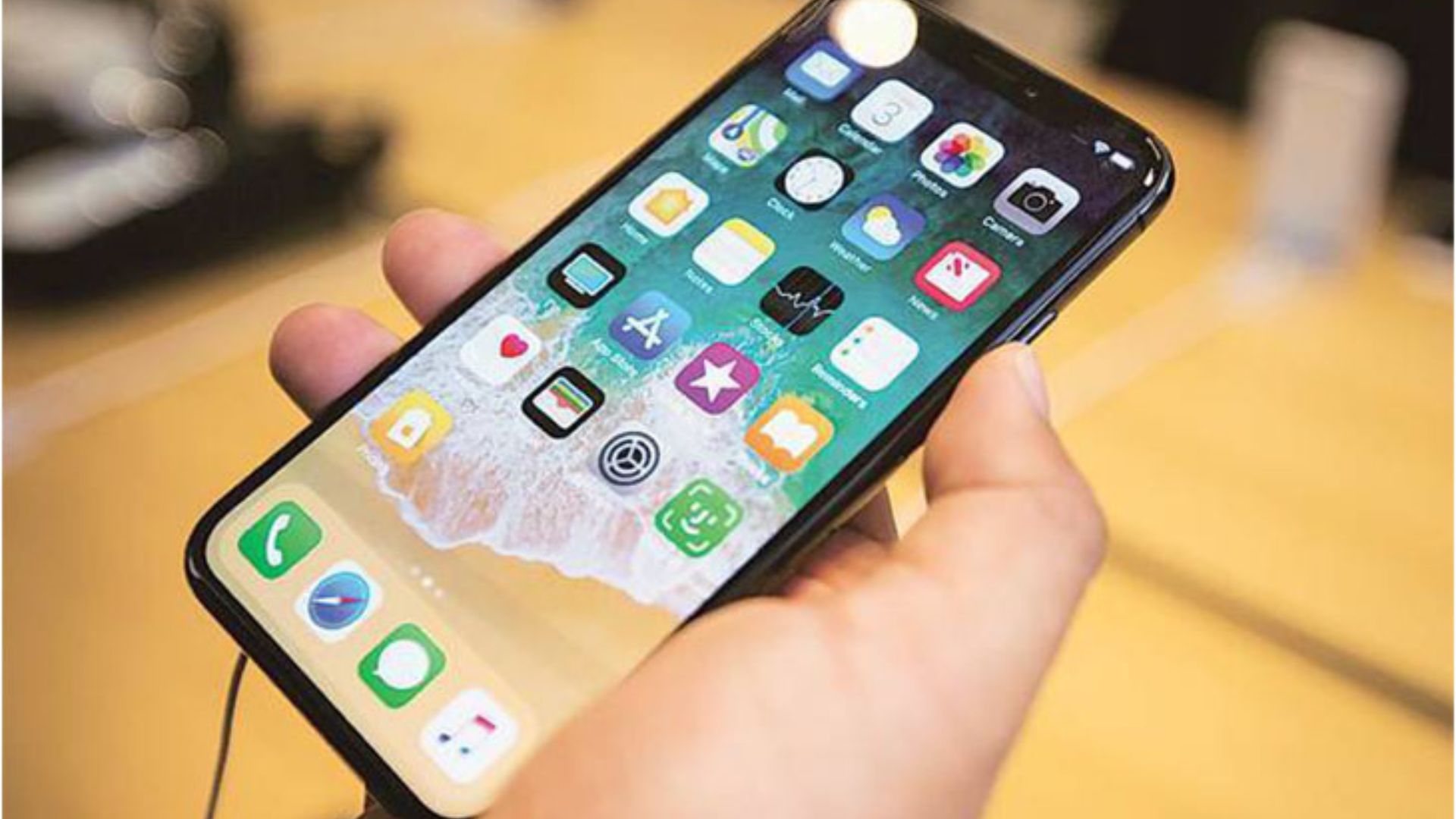
How To Hide Secret Apps on Your iPhone Keeping in mind your privacy, hiding mobile apps has become common. There are various options for Android users to hide the secret apps they use. Apple has also added this feature to the iPhone.
How to hide the secret app on iPhone?
First, long press on the app you want to hide.
– After this tap on the ‘remove app option’.
– There you will be given three options; ‘delete app‘, ‘remove from home screen’, and ‘cancel’. Now tap on ‘remove from home screen’.
– If you want to hide multiple apps at once, long press any empty part of the mobile screen. After this you can see a ‘-‘ sign to the left of each app. Tap on that sign and tap on ‘remove from home screen’.
– To use the hidden app in this way, you can go to the search box of the mobile and type the name of the app to open the app, or you can also use the app by going to the app library.
How to bring the hidden app back to the home screen?
– Scroll the screen to the left to go to the iPhone’s app library.
– After scrolling, you will reach the app library. You can also see the app you have hidden there. Long press on the app you have hidden and drag it to the home screen.