
How to Run Ambison Guru’s Mobile App There is no doubt that technology is changing our daily lives. Along with our changed daily lives, the way we read has also changed. Today, there is no compulsion to go to school or college to study.
Through the digital learning platform, we can study wherever we are. Many digital learning platforms help you read in this way. One of them is Ambison Guru.
In addition to this, preparation classes can be taken for various other courses, including management, banks, and institutes, all subjects of science, security agencies, and languages.
Ambison Guru has both a mobile app and a website for those classes. In this article, we will discuss how to use Ambison Guru’s mobile app and what it has to offer:
How do I register for the app?
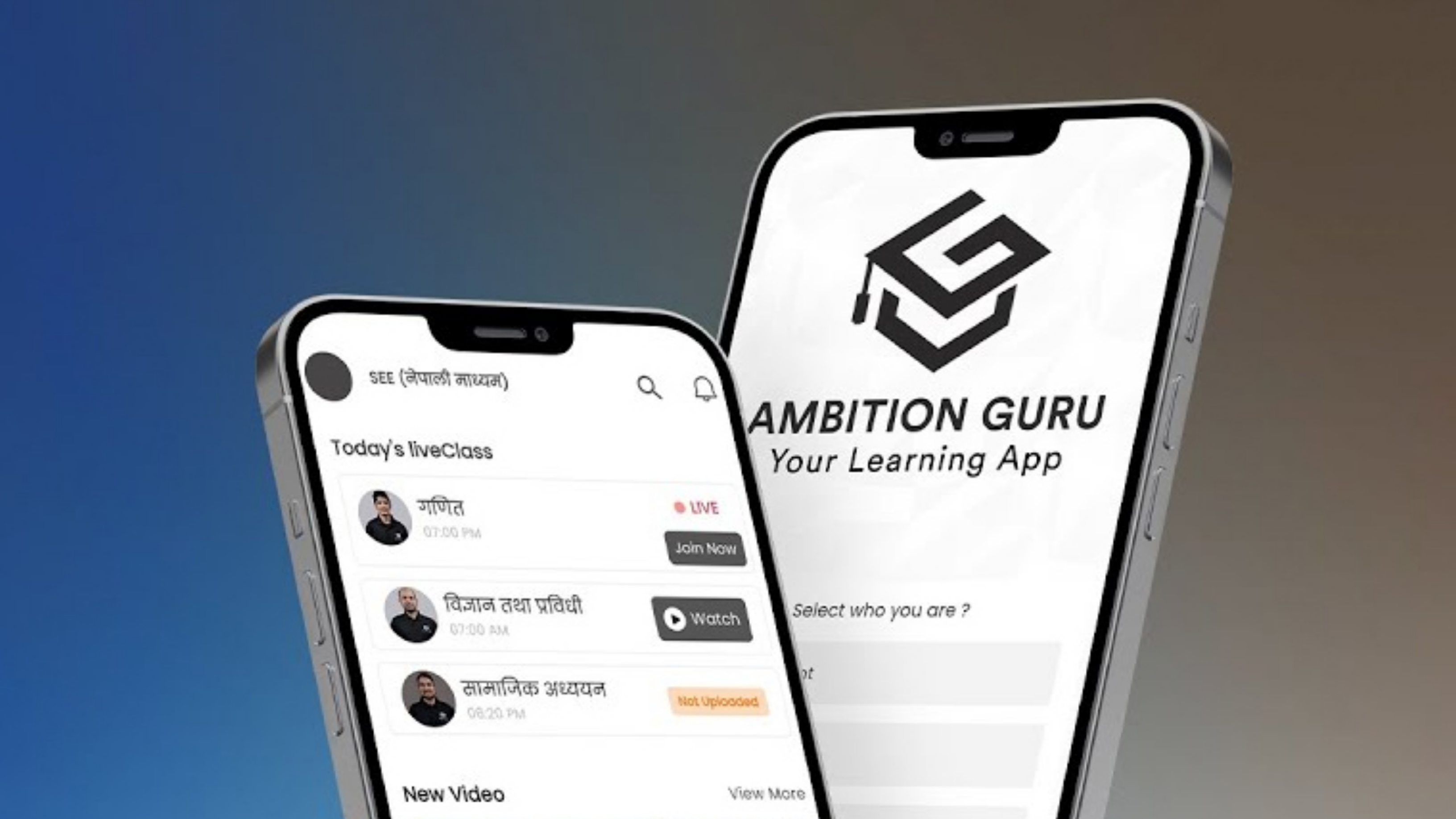
Ambison Guru’s mobile app can be downloaded on both Android and iOS. As soon as you download and open the app, you will see four options, namely Student, Ag Store, Parent, and Guru.
Tap Student if you are a student, AG Store if you are an Ambison Guru agent, Parent if you are using the app for your siblings or children, and Guru if you are an Ambison Guru teacher. This article, it is taught how to use the app as a student.
How do you choose the subject you want to read?
Then you can tap on the course you want to study. For that, courses such as medical/paramedical, management, language, Korean, public service, teacher service, etc. can be found. Now the SEE exam is approaching. That is why SEE will be taught in the article.
After tapping on the SEE (Grade 10) language option,. In other words, you have to choose Nepali or English. Then you can see your course details. Let us mention here that the fee of 2 thousand 499 rupees has to be paid for the preparation class of SEE. After selecting your course, the subject and gurus will appear on the screen. You can also view the class schedule.
How do I buy a course for others?
There is another option called ‘Gift for Others’. That means you can purchase the course for someone else as well. After tapping on this option, enter the student’s phone number. If the student is already registered in Ambition Guru, the details of the student will appear on the screen.
Then tap on ‘Continue’. Here, you can see different payment options. Currently, you can pay fees on Ambison Guru through PhonePe, eSeva, Kalti, and Bank. Select your payment option and tap. If you use PhonePay, tap PhonePay. Then comes a QR. You can scan it and make your payment.
How do I take classes after enrolling in the course?
There are five options at the bottom of the screen. If you tap on ‘Home’, you can find details of your course, including live classes, recently uploaded videos, free videos, news related to the course, other available courses, and news available on various media.
You can view your course syllabus by tapping on the ‘Study’ option next to the home page. Also, by tapping on the live class at the top of the screen, you can get information about which subject and when the live class will be held.
If any class is going on, you can join by tapping on ‘Join Now’. By tapping on ‘Live Class Library’, you can watch the recorded videos of previous live classes.
How to ‘test’ the app
After studying, you can take various tests of your course by tapping on ‘Test’ at the bottom of the screen. After tapping on the ‘test option’, there are five other options. If you want to take the exam according to your syllabus, then tap on ‘Chapter Wise Test’. If you want to take an objective test based on what you have already studied, you can also test yourself by answering short questions by tapping ‘Quick Practice’.
Similarly, by tapping on other ‘Hard Questions’ and ‘Top Questions’ and answering the questions you find difficult or the most frequently asked questions, you can take part in the exam.
How do I switch’ the course?
If you are enrolled in more than one class, you may need to switch your course. If the course is not switched, you may not be able to access the content of the next course. To switch courses, tap the ‘Profile’ icon at the top left of the screen. Go there tap on ‘My Course’ and tap on the course you want to study.
Then a pop-up message will appear. Where you are asked, ‘Switch Package’. Tap on ‘Confirm’ there.
Other features of the app
Now let’s move on to another feature. Along with the test, you can see the ‘Audio Feature’. After tapping here, you can also listen to audiobooks on various topics. Various audiobooks have been kept, especially to help your course.
At the very end is ‘Ask’. This feature is specially designed for you to interact with or ask questions of your gurus. By going here, you can consult your subject guru and ask about the topics you don’t understand.
After all this, there is no need to make excuses that there is no time or place to study. You can read anywhere and anytime. Education is not within the walls of the classroom; now it has come to the mobile phone.
 How to Run Ambison Guru's Mobile App